
How to use InPage interface and Navigation
Welcome back to the course. In Module 1 we looked at what InPage is, its different versions, and how to get it safely. Now that the software is installed and open in front of you, it is time to get comfortable with what you see on the screen. This module is all about understanding the interface and moving around your document with ease.
I still remember how crowded the InPage screen looked to me on my very first day. There were buttons, rulers, and bars everywhere, and I had no idea what most of them did. The truth is that the interface is far simpler than it appears. Once you learn a handful of basics, you will move around like a professional. Let me walk you through it step by step.
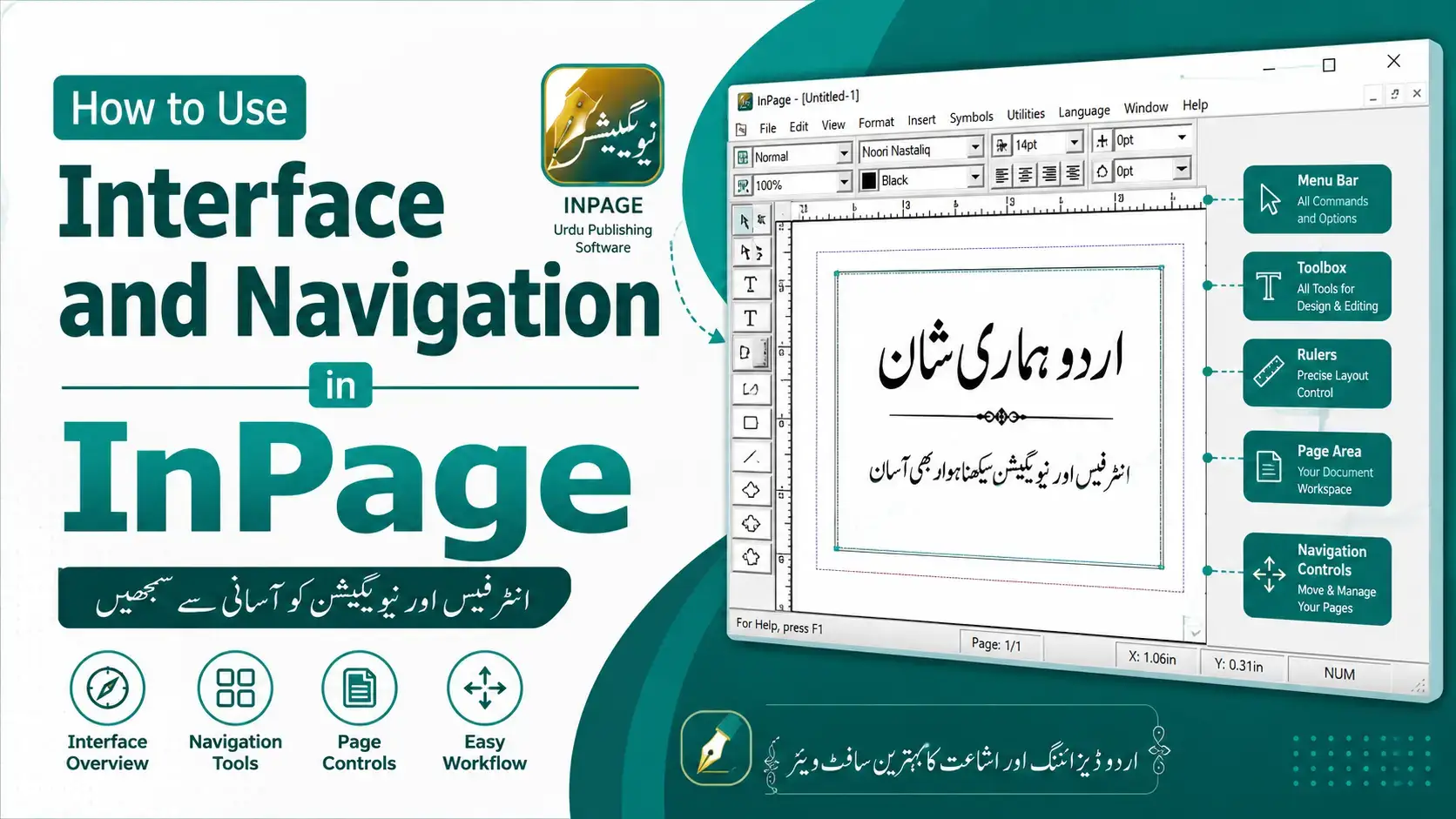
1. The InPage Interface
Think of the InPage window as your digital workspace. Every part of it has a job, and knowing these parts will save you a lot of guessing later. When you open the software, here are the main areas you will see:
- The title bar sits at the very top and shows the name of your open file.
- The menu bar holds menus such as File, Edit, View, Insert, and Format, where almost every command lives.
- The toolbars give you quick buttons for common tasks like new, open, save, cut, copy, and paste.
- The toolbox, usually along the side, contains your main tools, including the text box tool and the picture box tool.
- The rulers run along the top and left edge and help you measure and place things accurately.
- The page area in the centre is your actual document, where all your typing and designing happens.
- The status bar at the bottom shows useful details such as the current page number, the zoom level, and the active language.
When I train new users, I simply ask them to point at each of these areas and name it. Once these parts feel familiar, the whole program stops looking scary.
2. Window Management Keys
InPage lets you keep more than one document open at the same time, and a few simple controls make managing these windows much faster. I use them every single day, and they save me from reaching for the mouse again and again.
- Use the maximize button to make a window fill the whole screen for a clear, wide view.
- Use the minimize button to tuck a window away without closing your work.
- Use the close button to shut a single document when you are finished with it.
- Switch between two open documents using the Window menu instead of hunting for each one.
- Open the Window menu to arrange your open files side by side or in a neat stack.
A small tip from experience: when you are comparing two files, such as an original and a corrected version, arranging both windows together makes the job far easier on the eyes.
3. The InPage Scrollbar
The scrollbar is the simple bar that lets you move up, down, and sideways through your page when everything does not fit on the screen at once. It sounds basic, but using it well keeps your work smooth.
- The vertical scrollbar on the right moves your view up and down the page.
- The horizontal scrollbar at the bottom moves your view left and right, which is handy on wide pages.
- Drag the small slider inside the bar to travel a long way across your document in one motion.
- Click the arrows at the ends of the bar for small, careful movements.
- Roll your mouse wheel for the fastest up-and-down scrolling without touching the bar at all.
In my early days I used to drag the scrollbar for everything. The day I started using the mouse wheel, my work became noticeably faster, so I always pass this tip on.
4. Switching Between Urdu and English
Because InPage is built for languages like Urdu, switching between Urdu and English typing is one of the most important skills in this whole module. You will use it constantly when mixing the two scripts in one document.
- Look at the language indicator in the status bar to see whether Urdu or English is currently active.
- Click the language button on screen to switch from one language to the other in a single tap.
- Use the keyboard shortcut for language switching when you want to change quickly while typing.
- Type a few test words after switching to confirm the correct script is appearing on your page.
- Remember that Urdu flows from right to left, while English flows from left to right, so the cursor behaves differently in each.
I always remind students to glance at the language indicator before they start typing. This one habit prevents the very common mistake of writing a whole line in the wrong script.
5. Zooming a Document
Zooming lets you make your page look bigger or smaller on the screen, without changing the real size of your printed document. It is your best friend for both fine detail and the big picture.
- Zoom in to enlarge the page when you need to check small text, the dots over letters, or fine spacing.
- Zoom out to shrink the page when you want to see the full layout and overall balance.
- Type an exact percentage in the zoom box to jump straight to the size you prefer.
- Use the fit-in-window option to bring the whole page neatly into view in one click.
- Use the actual-size or hundred-percent option to see your document close to how it will print.
When I proofread Urdu text, I zoom in heavily to catch tiny errors, then zoom out to admire the finished page. Moving between these two views is a habit worth building early.
6. Switching Pages
Most real projects, such as books and magazines, have many pages, so moving between them confidently is essential. InPage makes this easy once you know where to look.
- Use the page navigation buttons, usually at the bottom of the window, to jump to the next or previous page.
- Use the first-page and last-page controls to leap straight to the start or end of a long document.
- Type a page number in the page box to go directly to any page you want.
- Add a new page from the menu when your content grows beyond the space you have.
- Delete a page you no longer need to keep your document clean and tidy.
A habit I recommend is saving your file before adding or removing pages. It is a small step, but it has rescued my work more than once over the years.