
Problems in Urdu Inpage and there Fixes
When you copy Urdu text from websites or MS Word and paste it into InPage, you will often face broken Urdu words, incorrect spacing, random symbols, and wrong character shapes that completely destroy the readability.
These common problems include encoding and formatting differences, spacing issue with incorrect gaps, extra spaces or missing spaces, letters joined incorrectly, and words split apart, which ruin the overall layout and your printing design quality.
In a proper Nastaliq script, letters form a beautiful ligature where individual letters change their word shape based on position to look natural and readable, but in InPage these letters do not join properly together.
Many users complain that words break, shapes look incorrect, and text looks scattered across the page, leaving behind those broken words that harm the entire publishing design of any final composed document or layout file.
Table of Content:
- What Happens When You Paste Text in InPage?
- Main Reasons Behind Problems in Urdu InPage
- 1. Encoding Difference (Unicode vs InPage Encoding)
- 2. Font Mismatch and Font Problem
- 3. Hidden Characters and Broken Text Structure
- 4. Direct Copy Paste Method
- Urdu Spacing Issue in InPage
- Urdu Ligature Problem in InPage
- What Are Urdu Ligatures?
- How to Fix Problems in Urdu InPage
- How to Prevent Problems in Urdu InPage
- Related Problems / Some Common Issues
- FAQs
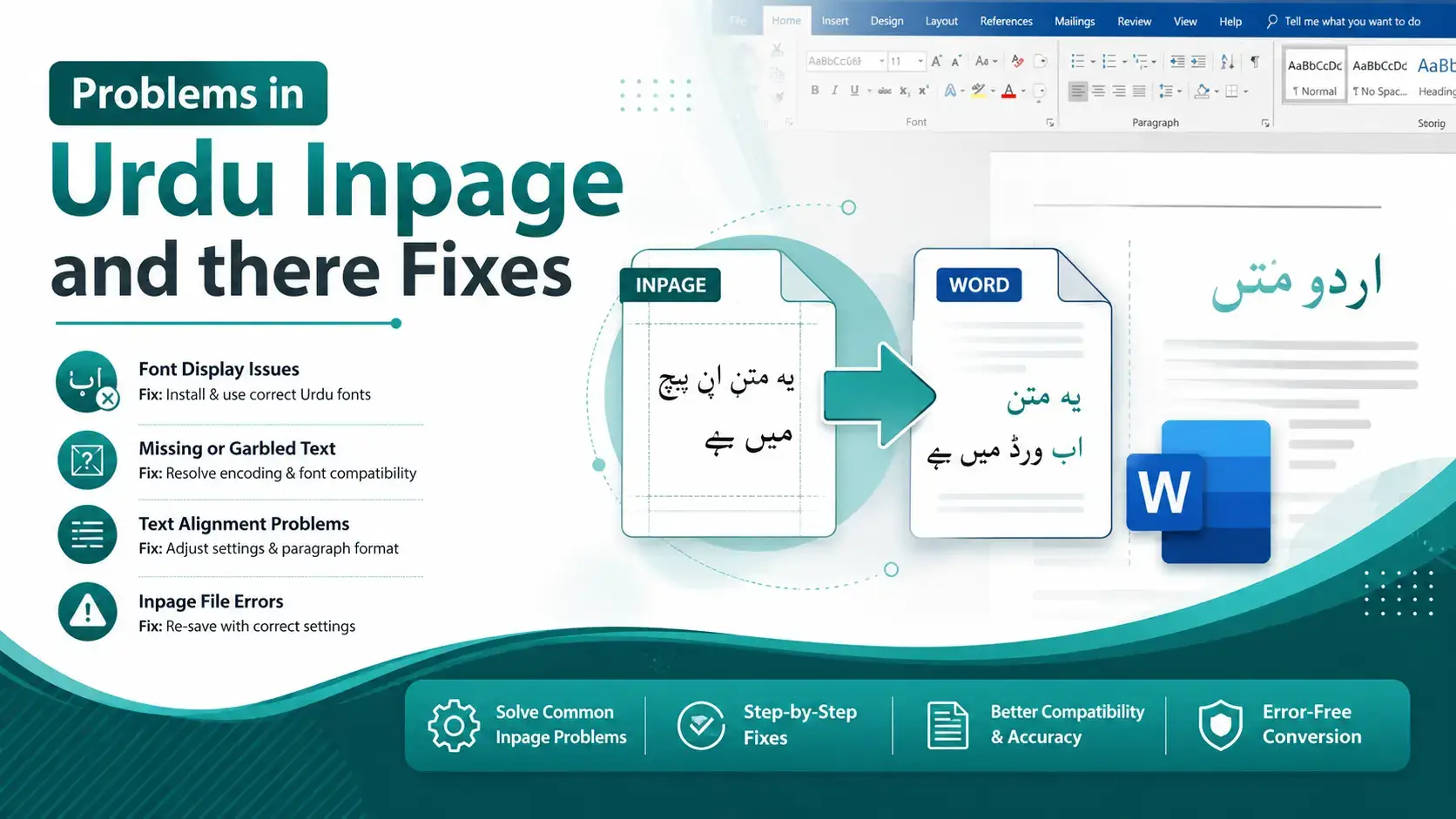
What Happens When You Paste Text in InPage
When most users paste Urdu text from websites or MS Word into InPage, the text changes instantly into broken Urdu words with incorrect spacing, random symbols, and wrong character shapes that ruin almost everything visible.
The main culprits behind this are the encoding and formatting differences between the source platform and InPage’s internal system, which is why this conversion gap always produces these visible distortions throughout your pasted Urdu content.
Main Reasons Behind Problems in Urdu Inpage and there Fixes
Encoding Difference (Unicode vs InPage Encoding)
The core problem here is the Unicode vs InPage encoding systems clash, because modern systems like websites and Word all use Unicode text, while InPage uses its own internal encoding that completely differs from it.
This encoding mismatch then causes the text changes instantly when pasted, producing visible broken text with extra spaces, where words break and characters appear separately rather than forming proper joined shapes inside the InPage document.
InPage’s ligature system depends entirely on its internal encoding difference rules, so when Unicode text arrives, the ligatures collapse and letters fail to join, creating obvious ligature errors across every line of the pasted material.
Font Mismatch / Font Problem
Another major reason behind these problems is the font mismatch, because when you paste Urdu text styled with a different font, the characters lose their natural form, ligatures break, and words split apart unexpectedly here.
InPage requires standard Urdu fonts like Noori Nastaliq or Faiz Lahori Nastaleeq to render text properly; using the wrong font always triggers display errors where ligatures collapse and characters appear separate instead of joining beautifully.
Proper fonts directly control the ligature formation in Nastaliq scripts, so even a small font swap inside the file completely destroys word shapes and turns clean Urdu sentences into totally unreadable scattered text almost immediately.
Hidden Characters / Broken Text Structure
Text from websites and Word files often carries hidden formatting elements like extra spaces, invisible symbols, and line break codes that travel along with the text, causing spacing issues, broken lines, and misaligned text everywhere.
These invisible elements like line breaks and special formatting codes create spacing errors that produce damaged Urdu structure after pasting; this is common when copying from websites or copying from styled documents with extra formatting.
These hidden characters silently disrupt the entire word flow, ruin spacing, prevent ligatures from rendering correctly, and leave the document with a fully broken structure that no amount of manual editing can easily repair afterwards.
Direct Copy Paste Method
The direct paste method using Ctrl V is the worst trigger of formatting issues, because it carries all the original formatting directly into InPage, causing severe text distortion as soon as content lands inside it.
When you copy paste content from websites, the result is spacing problems, hidden codes, unwanted line breaks, and extra spaces, which all together completely block proper ligature formation inside the final InPage Urdu document file.
Urdu Spacing Issue in InPage
Example of Urdu Spacing Issue
Consider the Urdu text “یہ ایک اردو جملہ ہے” shown before fix with incorrect spacing, then compare it after fix with correct spacing, clear text, finally producing a final result that is easy to read.
Incorrect Conversion
Some poor tools online convert text incorrectly and produce a wrong spacing between words along with a fully broken word structure, which makes the final Urdu output completely useless for any professional InPage layout work.
Manual Fix in InPage
For any short text, apply a manual fix inside InPage by working to select text, remove extra spaces, add missing spaces where needed, and carefully check each line until the output looks fully correct everywhere.
Urdu Ligature Problem in InPage
What Are Urdu Ligatures?
In Urdu, the Nastaliq script joins letters into words through a special ligature system where individual letters automatically change their word shape based on their position, giving every word a natural and readable finished look.
What Is the Urdu Ligatures Problem in InPage?
In InPage, the ligature problem appears as broken Urdu words where letters do not join, words break apart, shapes look incorrect, and text looks scattered, ruining both Urdu readability and overall publication design quality completely.
How to Fix Problems in Urdu InPage
Method 1: Use an Online Converter
The easiest fix is to convert your Unicode text using a Converter Tool that transforms it into proper InPage format, after which you simply copy the converted output and paste it directly into InPage safely.
An online free Unicode Urdu Text Converter is a reliable solution because it preserves text structure, fixes word spacing, restores ligatures, and applies proper formatting automatically without you needing to touch a single setting manually.
Method 2: Use the Urdu Text Cleaner Tool
Before conversion, run your Urdu text through a text cleaner tool to strip out unwanted elements, extra spaces, hidden characters, and broken formatting so that the clean text is ready for the next processing step.
This step helps remove spaces that disturb the word structure and corrects spacing before you convert your file into proper InPage format, giving a polished cleaner Urdu output ready for professional design and publishing layouts.
Method 3: Apply the Correct Urdu Font
Always paste content first, then select all text and apply the Noori Nastaliq font with the right size and proper spacing to fix any display issues; applying the correct font instantly improves overall Urdu readability.
Method 4: Paste Without Formatting (Plain Text Method)
When you copy text from a website, paste it into Notepad to convert it into plain text and strip the extra formatting, then feed that plain text into a converter tool before pasting into InPage.
This plain text method removes all unwanted formatting layers carried inside the original source, giving you a completely clean copy that responds well to the converter without breaking spacing, alignment, or any Urdu ligature shape.
How to Prevent Problems in Urdu InPage
To prevent errors, always avoid the direct paste habit into InPage; instead, convert Unicode text through trusted converter tools, run it through a text cleaner, then apply the font of your choice for accurate output.
The best practices include never trusting copy paste from styled websites, always preparing clean text from Unicode text, using proper Urdu fonts like Noori Nastaliq, and checking spacing to guarantee correct text display every time.
Related Problems and Some Common Issues
Related issues include the Urdu spacing issue, Urdu ligature problem, and text alignment issue, all sharing encoding and formatting as the root cause, alongside spacing issues and text changes after paste during regular editing tasks.
Most users also report formatting issues and formatting problems that appear together whenever Urdu content moves between Word, websites, and InPage, which makes solving them inside one combined approach the most practical fix overall.
Frequently Ask Questions and Problems
Why does Urdu text break in InPage after pasting?
Urdu text tends to break in InPage right after pasting because the difference between Unicode and InPage encodings changes the structure of every letter, ruining ligatures, spacing, and the overall flow inside the document file.
What is the best way to paste text into InPage?
The best way is to convert your Unicode text into proper InPage format through a reliable online converter before pasting, since this approach keeps the spacing, ligatures, and character shapes correctly preserved at every step.
How do I fix spacing issues in InPage?
To fix spacing issues in InPage, run your Urdu content through a text-cleaning tool that automatically detects and removes any extra spaces, hidden characters, and broken formatting elements before inserting the cleaned text again.
Can I paste text directly from a website?
Avoid direct paste from a website since it carries hidden formatting straight into InPage; instead, you should paste text as converted text through a reliable Unicode converter so it displays cleanly with correct word shapes.
Why does Urdu text have extra spaces?
The Urdu text often contains extra spaces because of hidden characters and unwanted formatting carried silently from the original copied source, which then transfers directly into InPage and instantly disturbs the rhythm of every line.
How can I fix spacing in Urdu text?
Fix spacing in your Urdu text by passing the content through a text-cleaning tool to remove invisible elements, then convert text through a Unicode converter so the final spacing pattern stays clean and consistent.
Can I manually adjust spacing in InPage?
Yes, you can manually adjust spacing inside InPage when working with small text segments by selecting words, deleting extra blanks, and inserting missing gaps line by line until the entire Urdu paragraph reads perfectly clean.
What is the best method to avoid spacing issues?
The best method to avoid spacing issues is to always clean text before pasting, then convert text into the proper format using a trusted online tool, and finally drop the polished output safely inside InPage.