
How to Use InPage Software
What Is InPage Software?
InPage stands as essential desktop publishing software built specifically for writers, designers, and newspapers handling Urdu content. From my hands-on years inside print rooms, nothing matches its Nastaliq style rendering when crafting proper Urdu text layouts.
Most users encounter trouble because its encoding system is not the same as Unicode. Simply copying material from websites or Word files creates different display issues. The program helps you write cleanly once that quirk is understood.
Table of Content:
- What is InPage Software?
- How To Install Inpage Urdu?
- How To Write Urdu In InPage?
- How To Format Text In InPage?
- How to Copy and Paste Urdu Text into InPage?
- How To Convert Inpage Keyboard To Phonetic?
- How To Change Page Setup, Page Size, Orientation, Margins And Columns In Inpage Urdu?
- How To Use Symbols In Inpage Urdu?
- Internal Tools You Should Use
- Shortcuts Of InPage Urdu
- Common Problems and Fixes in InPage
- Best Practices for Using InPage
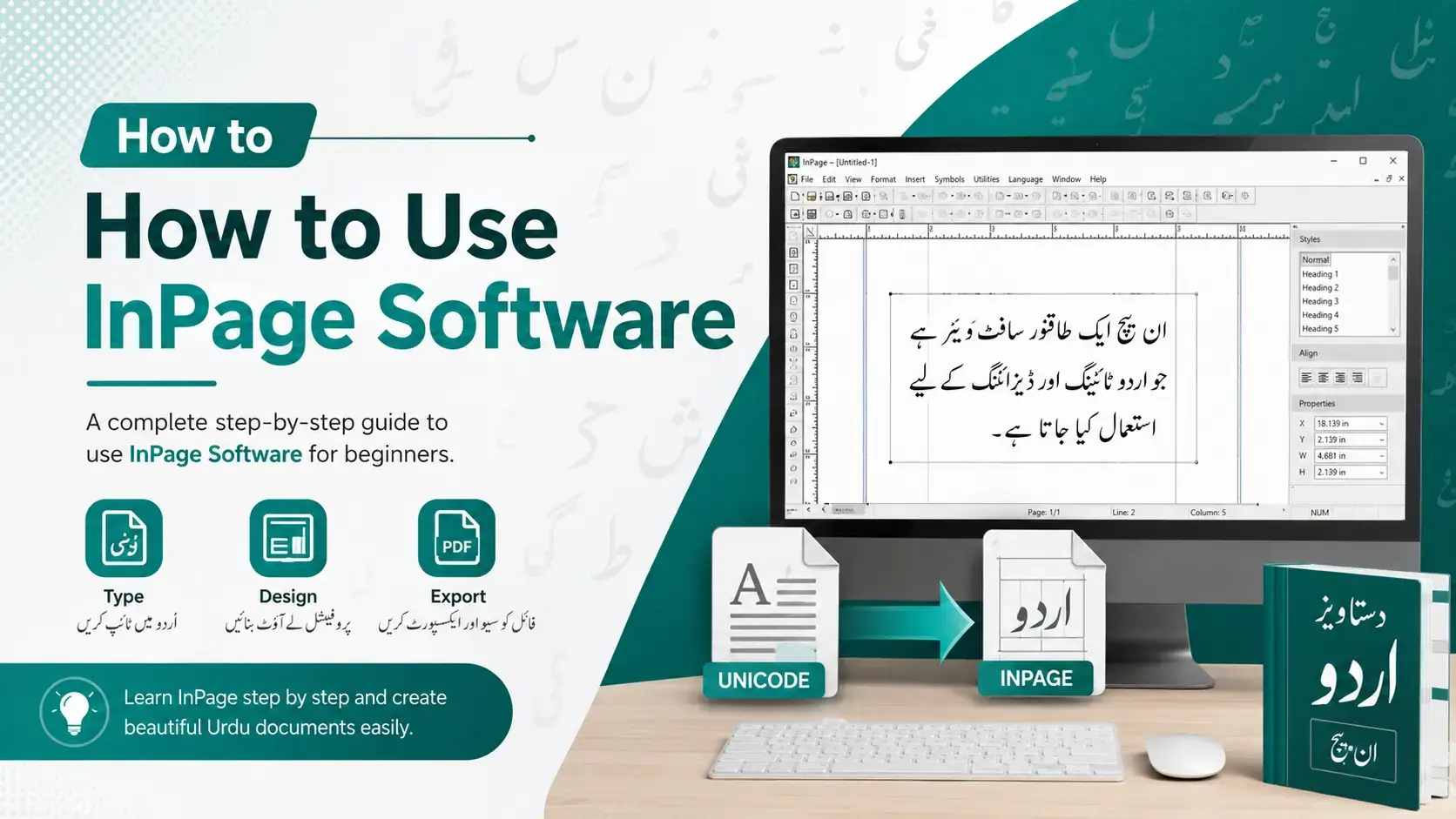
How to Use InPage Software and Install?
Before you can create anything meaningful in Urdu, you need the right setup first. Inpage Urdu software isn’t bundled with Windows by default, so users must download the installer from a trusted source online. Google “InPage download” and choose carefully.
Once downloaded, locate the file in your downloads folder and double click to launch the program. The installer wizard appears on screen, guiding you through the licensing terms carefully. Accept them, then save the install path to a memorable location.
During the installation process, some users will encounter error messages about missing components or compatibility issues. Don’t panic at all. Click OK and let the steps continue. On modern Windows versions, run the InPage setup as administrator to avoid failures.
After finishing, open the program from your desktop shortcut. The first launch loads Noori Nastaliq as the default Urdu font, which is essential for proper rendering. From here, the software helps you create Urdu content in true Nastaliq style beautifully.
How to Use InPage Software for Writing?
Most practitioners I’ve trained skip an obvious step: locating the T icon sitting quietly on the Toolbar before anything else happens. Click it once, then select the page area where your writing should start flowing.
Honestly, the Urdu keyboard layout confuses newcomers because it doesn’t mirror English positions naturally. After years of teaching, I recommend memorising proper Urdu fonts placement gradually rather than rushing through every type session you attempt.
A lesser-known trick: pressing Ctrl + Space instantly toggles between English and Urdu mode, saving hours weekly. Beginners often prefer the Phonetic keyboard since a = ا and b = ب feel intuitively quite familiar.
From experience, always adjust your font size through the Format menu immediately after typing, never any time afterwards. Bold headings, italic quotes, and balanced line spacing transform raw Urdu text into genuinely professional output documents.
How To Format Text In InPage
Formatting work in InPage genuinely starts with the Text Tool from the Menu bar placed right at the top centre. Select your text first, then apply Ctrl + B for bold or Ctrl + I for italic styling options quickly.
For deeper layout control, open the character dialogue box via Ctrl + T, or grab style sheets through Ctrl + G‘s paragraph dialogue box. Use Ctrl + F10 to increase font, plus Ctrl + Alt + L, Ctrl + Alt + R, or Ctrl + Alt + J to align text properly.
How to Copy and Paste Urdu Text into InPage?
Honestly, direct paste from websites rarely behaves well. Unicode text copied into InPage often breaks because different encodings clash badly. My routine: grab content via Ctrl + Cj, run it through a Unicode to InPage converter, then Ctrl + V. Always check spacing afterward hidden characters quietly sneak in, ruining clean layouts.
How To Convert Inpage Keyboard To Phonetic?
Switching typing layouts inside InPage feels surprisingly intuitive once you understand where to look. Head over to the Edit menu, then click on Preferences, and from there select Keyboard Preferences. A configuration image appears showing layout options. Pick Phonetic, confirm your choice, and start typing Urdu using English-sounding keys naturally.
How To Change Page Setup, Page Size, Orientation, Margins And Columns In Inpage Urdu?
Honestly, most newcomers skip the layout phase entirely, but pressing Ctrl + N opens the New Document window where every meaningful structural decision actually lives before a single Urdu character lands.
Inside that dialog, your page size selection shapes everything downstream, while orientation choices dictate whether headlines breathe properly. After tweaking margins and columns, hitting the ok button locks the blank file into shape.
Script directions matter uniquely here since Urdu flows right to left, unlike English running left to right. I always verify this toggle first because mismatched flow ruins entire publications, particularly when mixing bilingual content across frames.
Zoom controls deserve overlooked respect: F5 drops you to 46.5%, F6 snaps 50%, F7 brings 100%, while F8 pushes 200% instantly. The left lower corner displays current zoom value dynamically as you navigate.
You can manually input decimal values like 100.5%, anywhere between 1% and 300%, which beats preset jumps. Type any letter, such as ا (Alif) or ق, using Monotype or Phonetic keyboards for testing alignment immediately.
How To Use Symbols In Inpage Urdu?
Symbols in InPage often live inside specific fonts like Webdings a lesser-known trick most writers skip. Open your document, switch to English mode, then pick Webdings from the English fonts list. Each key now maps to a different symbol. Use shift + p combinations or Ctrl + H to replace placeholders directly.
Internal Tools You Should Use
Inside InPage, the Edit menu hides genuinely useful internal helpers that most beginners overlook completely. The Preferences panel lets you change typing behaviour, while Keyboard Preferences quietly switches between Urdu keyboard layout and Phonetic keyboard.
The Symbols menu remains my favourite hidden gem use insert symbols for diacritics nobody types daily. Pair it with the clipboard workflow, format controls, and quick align options for genuinely polished and professional Urdu typesetting work.
Don’t ignore the Document option for page setup adjustments, nor the File → New shortcut for creating fresh layouts. The text cleaner tool alongside built-in formatting tools rescues messy imports, while zoom controls preserve eye comfort.
Shortcuts Of InPage Urdu
Working inside InPage for many years taught me that keyboard mastery truly separates amateurs from professionals here. The Backspace key seems trivial, yet it efficiently helps delete previous character glitches without disrupting the cursor’s position.
Honestly, Ctrl + Backspace changed my editing speed dramatically when I really needed to delete previous word errors. Combined with Ctrl + X to move selected text between document sections, plus Alt + Backspace undoing mistakes feels magical.
Newcomers often overlook Delete for removing the next word ahead, which beginners struggle with daily. For symmetric layouts, Ctrl + Alt + F performs force align across both sides, complementing standard align left and align right commands.
Switching contexts inside paragraphs taught me that Ctrl + Alt + T elegantly switch text and tab mode without breaking layouts. Spacing adjustments through Ctrl + F5 to increase space or Ctrl + F6 to decrease space save hours.
Fine-tuning vertical typography really requires Ctrl + F7 to move upward baseline subtly, while Ctrl + F8 lets typesetters move downward baseline precisely. Use Ctrl + F9 to decrease font size, plus Alt + Delete to delete pages quickly.
Common Problems and Fixes in InPage
Veterans notice text breaks when pasting from websites or Word files into InPage. The encoding difference between Unicode and proprietary formats causes issues, demanding a converter tool to restore proper InPage format quickly each time.
Stubborn spacing issues plague seasoned designers, where extra spaces sneak between Urdu glyphs randomly throughout. A text-cleaning tool or Urdu text cleaner can remove these gaps, helping fix spacing issues without manual editing marathons today.
When proper fonts vanish mid-document, especially while attempting to write Arabic glyphs, switching to Trad Arabic or Trad Arabic Bold saves legibility. Diacritics like zair, zabar, and paish sometimes misalign, requiring careful text formatting patience.
Conversion headaches surface when moving an Inpage file to PDF via Microsoft XPS document writer, or shifting Inpage to Corel Draw. The selector tool grabs your whole page, then right mouse click to paste inside CorelDraw.
Lost work haunts users; Ctrl + Z triggers undo for the last action instantly. When sections vanish, Alt + Insert brings back insert pages, while Ctrl + F opens find text for hunting fragments quickly.
Best Practices for Using InPage
From my years working with Inpage Urdu, mastering the workflow early prevents countless errors down the line. Smart tools usage helps save time and improve overall Urdu text formatting quality across every page you type.
Always prefer the Clean and Paste method it’s Recommended when you copy Urdu text from any website. Convert to Unicode Urdu text, then ensure your correct Urdu font loads properly before final formatting adjustments begin.
Seasoned users learn keyboard shortcuts for everyday efficiency pressing Ctrl + C to copy, Ctrl + V to paste text, and Ctrl + A to select all text saves enormous effort during lengthy typing sessions.